How to Export a Chat from Copilot
GitHub Copilot is a powerful AI coding assistant. While Copilot is great for interactive development sessions, it doesn’t have a built-in way to export chat history or share conversations. If you’ve ever wanted to export a Copilot chat, save a session for later reference, or share an AI-assisted coding session with a teammate — this guide is for you.
Using Cooontext, you can export any Copilot conversation in under 30 seconds and share it with coworkers, followers, or friends.
Why Export Your Copilot Chat?
Before diving into the steps, here’s why developers commonly need to export Copilot sessions:
- Share Copilot chats with teammates — pass along a useful debugging session or architecture discussion without copy-pasting walls of text.
- Export Copilot chat history for documentation or postmortems.
- Save context from a long coding session to revisit later.
- Publish Copilot conversations to your blog or social media to show your workflow.
- Export prompts you’ve refined over time to reuse or share with others.
Copilot doesn’t natively support any built-in export command, which is why a dedicated tool like Cooontext fills the gap.
How to Export a Copilot Conversation (Step-by-Step)
Step 1 — Install the Cooontext Export Tool
Install the ctx CLI by running the following command in your terminal:
curl -fsSL https://cooontext.com/install.sh | bashThen run the export command and select the “Chat” option:
ctx export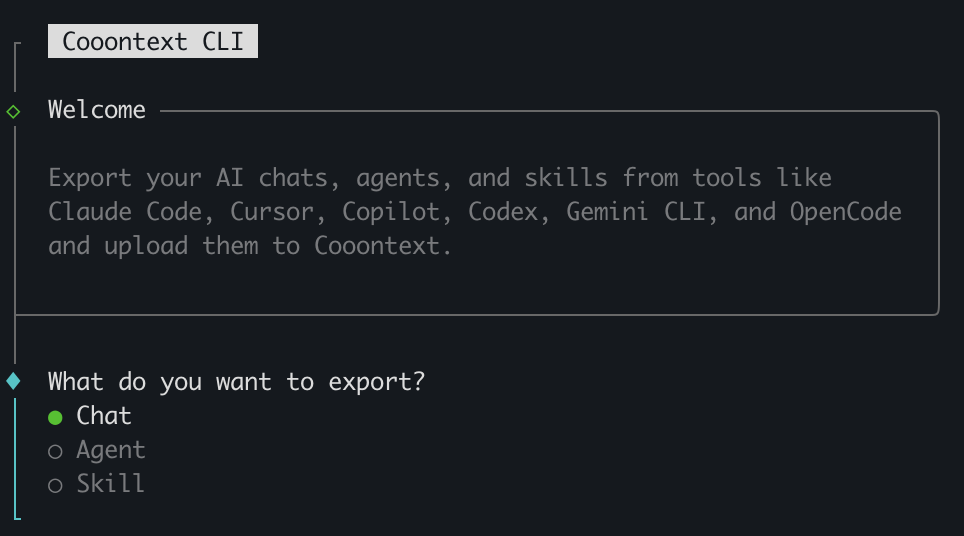
Step 2 — Choose “Copilot” as the Source
From the list of supported AI tools, select Copilot to export your conversation.
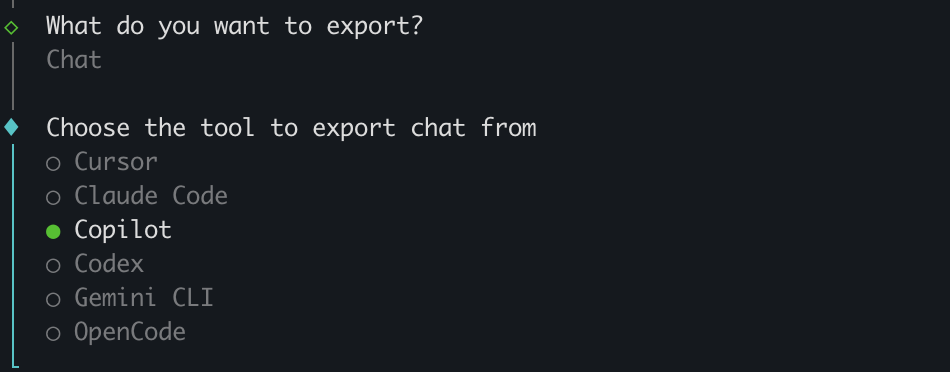
Step 3 — Select the Chat Session to Export
ctx will automatically detect your local Copilot session history. Pick the conversation you want to export.
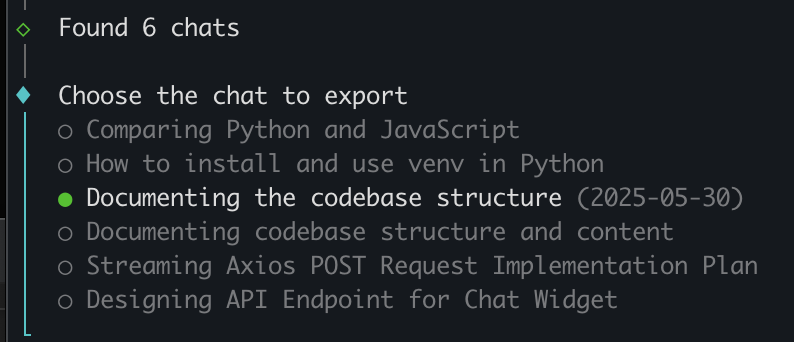
That’s it — your Copilot chat export is complete!

The exported conversation is now saved to your Cooontext account and available at any time.
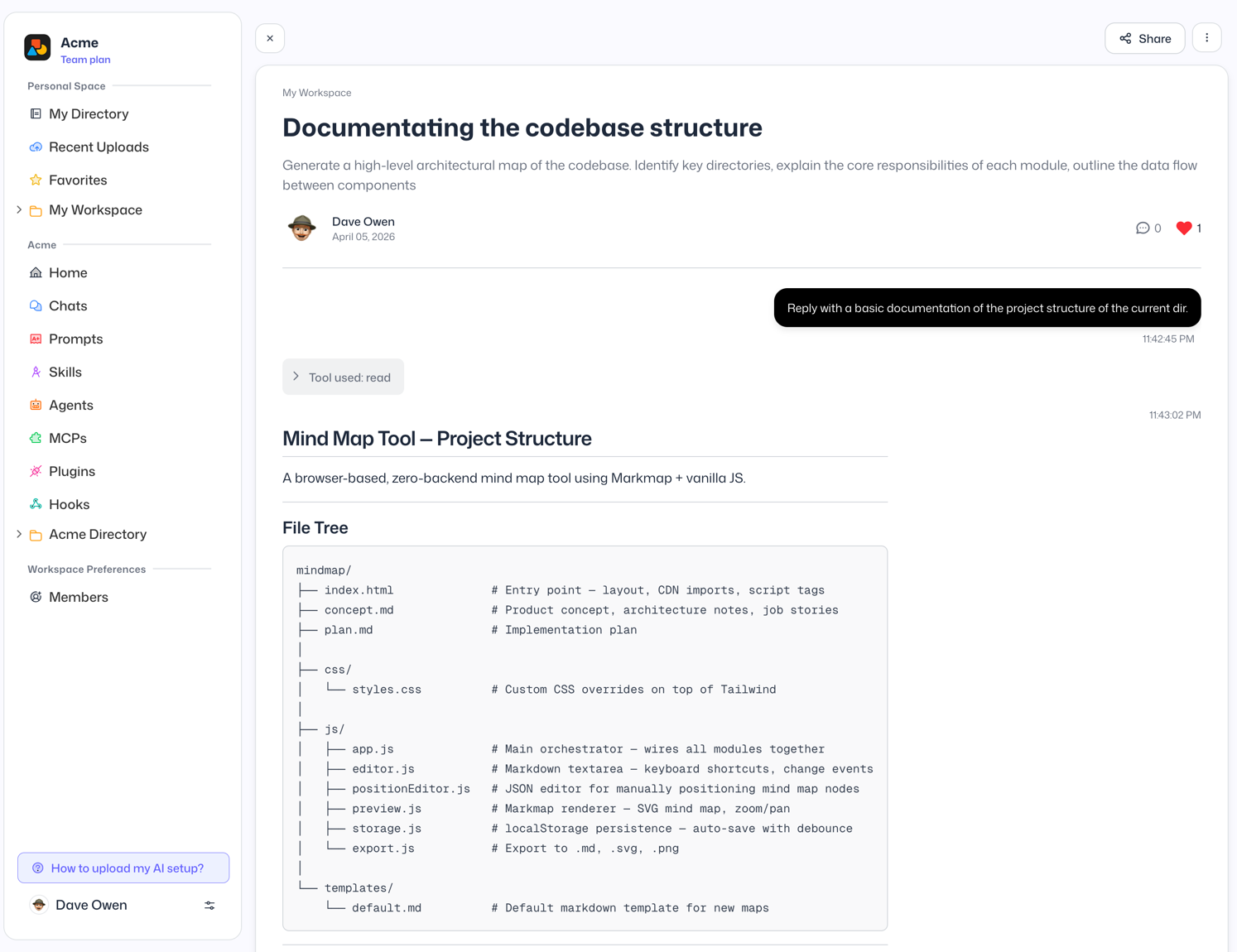
Bonus: Share Your Copilot Chats
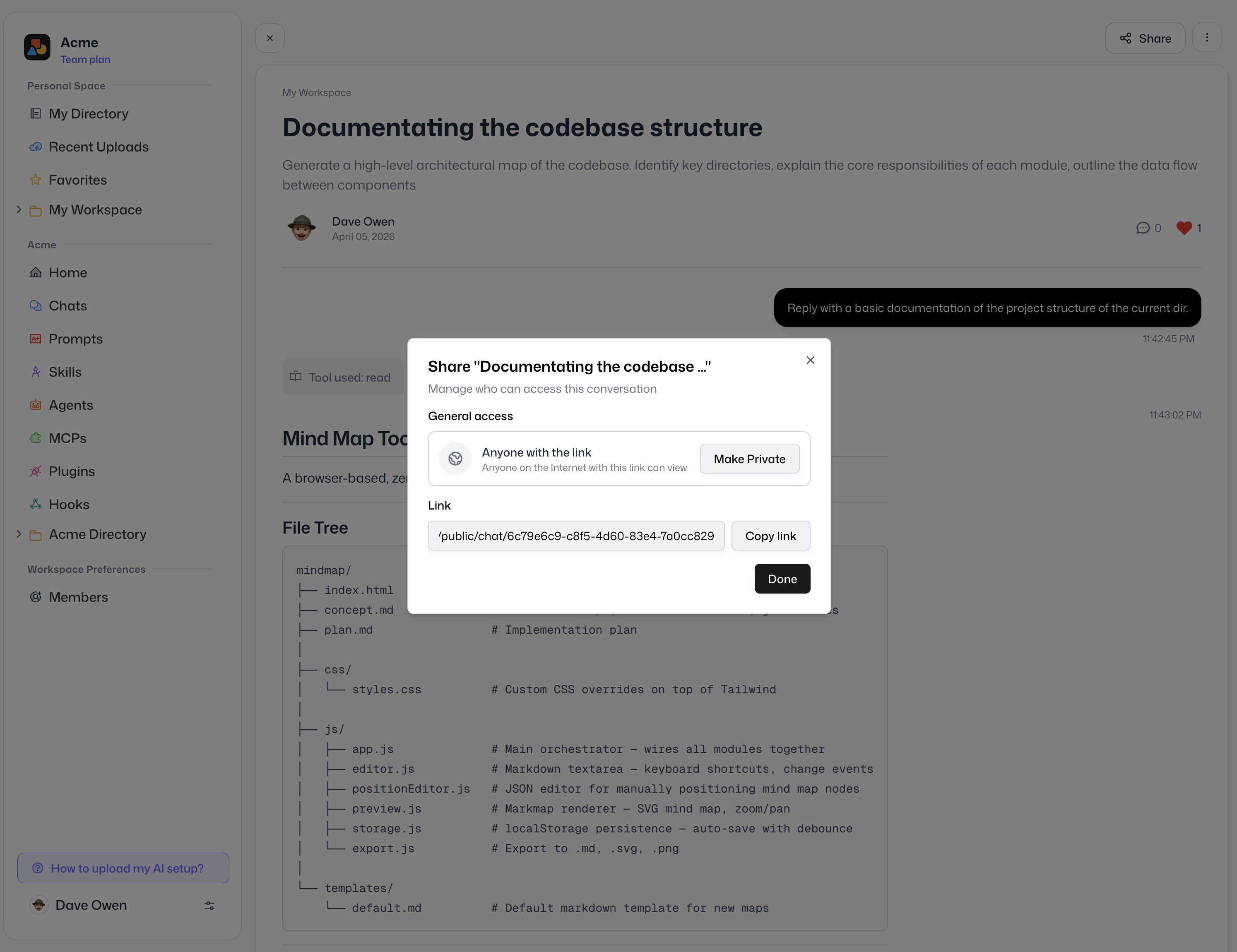
Once exported, you get a shareable link you can send to anyone — no account required on their end. Share your Copilot session with coworkers for code review, post it to social media, or embed it in your documentation.
Whether you want to copilot share chat, copilot share prompt, or simply copilot download chat as a permanent record — Cooontext has you covered.
Frequently Asked Questions
Does Copilot have a built-in export command?
No. As of 2026, GitHub Copilot does not include a native export command or any built-in way to export chat history. The ctx tool from Cooontext is the easiest way to export Copilot conversations.
Can I export my full Copilot chat history?
Yes. Cooontext’s ctx tool reads your local Copilot session files and lets you select any conversation to export — including long multi-turn sessions.
How do I export a Copilot conversation to share with a coworker?
Install ctx, run ctx export, choose Copilot, select the session, and share the generated link. The whole process takes under 30 seconds.
How do I save a Copilot chat for later?
Use ctx export to export the session to your Cooontext account, where it’s stored permanently and accessible via a shareable link.
Is the export tool free?
Cooontext offers a free tier that covers basic exports and sharing. Visit cooontext.com for details on plans.
Summary
Exporting a chat from Copilot is straightforward with the right tool. Here’s a quick recap:
- Install
ctx:curl -fsSL https://cooontext.com/install.sh | bash - Run
ctx exportand choose Chat - Select Copilot as your source
- Pick the session you want to export
- Share the link with anyone
Whether you need to export a Copilot session, save your Copilot chat history, or share an AI coding conversation with your team, Cooontext makes it effortless.